
Sessions verwalten
Change details
Via Settings→Sessions, you can access the session management screen.
There, you can use to open a session in detail from the list, where the name, notes and all recording texts are displayed.
(If you click on a session list item elsewhere, that session becomes active and you are taken to the home screen.)
Delete
Each session can be deleted using .
Deletion can be undone using Undo.
If an active session is deleted, the next one is activated.
Duplicate
If a session is duplicated, the duplicate is given the prefix copy of.
When duplicating, all session data is copied, but not the audio recordings, which are merely referenced.
Create new
A new session is initially empty, and generators still need to be added and configured.
These are pre-configured with example timelines and configurations.
Export
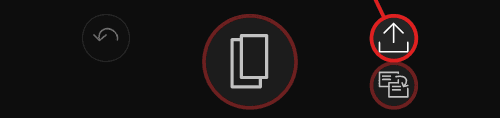
During export, a ZIP file named session name plus timestamp is created, which contains all the session data in JSON format, as well as all the audio files used within it as MP3s.
Such a ZIP archive can also be imported again and is well suited for saving interim results whilst working on a session, or for exchanging sessions between different devices.
Import
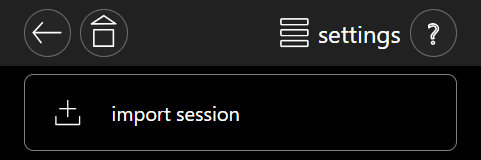
When a session is imported via a ZIP file, it is added to the Neurotransformer.
The audio files are only added if they do not already exist.
If a session with the same name already exists, a sequential number is added to the name.
Copy values
Individual values from another session can be imported. This is sometimes useful, for example, if you wish to import a tried-and-tested time series from an older session.
Such a transfer is only possible between generators of the same type.
A list displays all the different values of a generator. With a single click, you can select those that are to be transferred.
Clicking on Copy values carries out the transfer .